![CoverForce_Secondary Logo (transparent).png]](https://helpcenter.coverforce.com/hs-fs/hubfs/CoverForce_Secondary%20Logo%20(transparent).png?height=31&name=CoverForce_Secondary%20Logo%20(transparent).png)
⛔ Please Note: CoverForce does not initiate or facilitate carrier appointment requests. You must already hold an active appointment with this carrier before completing the steps below.
Information You Will Need
Come prepared with the information below. Each agency requires a one-time setup to create a shared access key and secret key for each platform, including CoverForce. Guard uses these details to recognize that a submission belongs to your agency, making it quick and accurate to enable your broker code and appointment for digital quoting.
-
Broker ID Name: A nickname you give this broker code so it's easy to identify later. This is for your reference inside CoverForce, and helps users tell broker codes apart when your agency holds more than one with the same carrier.
-
🔐 Access Key: Identifies your agency as the broker of record for policies. You don't have this yet, follow Step 1 below to start the process of obtaining your Guard access key and secret key.
-
🔐 Secret Key: Identifies your agency as the broker of record for policies. Provided by the Guard team after completing Step 1 below.
-
Contract Number: The unique ID assigned to your agency by Guard. It is a mix of letters and numbers and looks like PAFAKE10.
-
Producer Code: The username the licensed producer uses to log in to Guard.
-
Customer Success Representative Email (CSR): The email address you want notifications sent to.
STEP 1: Getting Your Guard Credentials for CoverForce
Each agency requires a one-time setup to create a shared access key and secret key for each platform, including CoverForce. Guard uses these details to recognize your agency and complete the connection for digital quoting.
To request credentials, contact API@guard.com with the information below.
-
Rater/Platform: The platform you need access to. For CoverForce, enter CoverForce.
-
Guard Agency ID: The unique ID assigned to your agency by Guard. It is a mix of letters and numbers and looks like PAFAKE10.
-
Agency Contact: The person at your agency Guard can work with to complete setup.
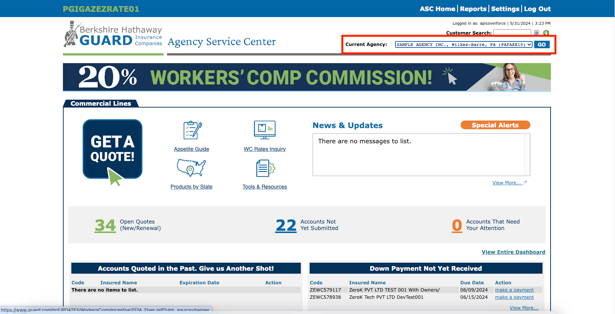
Where to Find Your Credntials in Guard's Portal
i. Log in to your 🔗 Guard Agent Portal.
ii. Find your Contract Number/Agency ID in the dropdown at the top right of the home screen.
iii. If you have multiple Contract Numbers/Agency IDs, select the appropriate one from the dropdown.
🔐 Access Key (User Code) / Secret Key (Password) 🔐
Provided by the Guard team after you request access and credentials in Step 1.
Be sure to save both once you receive them, you'll need them to successfully complete your broker code setup!
How to Find and Enable Your Broker Code in CoverForce
Note: CoverForce has a new look and feel. Compare the screenshots below to what you see on your screen, then follow the matching set of steps.
🖥️ Original View (settings ⚙️ at the top of your screen)
- Hover over the settings gear on the top navigation bar.
- Click on "Broker Configuration".
- Scroll through the carrier list and select the carrier you’d like to set up.
- Click "Add Broker ID" on the right side of the screen.
- Enter the information required by the carrier for digital quoting (see Information You Will Need ⬆️ section above).
- Once all required information is entered, click "Save Changes" in the bottom right corner.
✨ New View (settings ⚙️ on the left side of your screen)
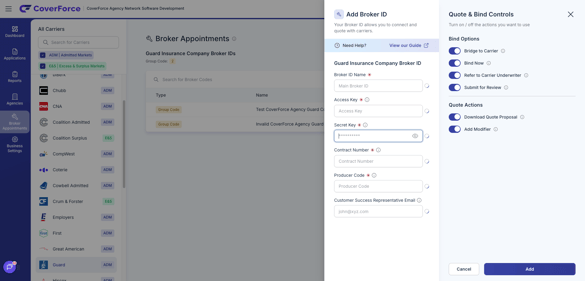
- Hover over the settings gear on the left navigation bar.
- Click “Broker Appointments”.
- Search for or scroll through the carrier you’d like to set up.
- Click “Add Broker ID” on the right side of the screen.
- Enter the information required by the carrier for digital quoting (see Information You Will Need ⬆️ section above).
- Once all required information is entered, click "Add" in the bottom right corner.
🎉 You're Ready to Quote with Guard!
You've entered all the information required, your appointment is now enabled for digital quoting in CoverForce.
No broker code request form and no waiting on approval!
Start a new quote to check Guard's appetite, and you can begin quoting and binding today.