![CoverForce_Secondary Logo (transparent).png]](https://helpcenter.coverforce.com/hs-fs/hubfs/CoverForce_Secondary%20Logo%20(transparent).png?height=31&name=CoverForce_Secondary%20Logo%20(transparent).png)
⭐ This carrier does not require a broker code request form! You can enable it yourself right in CoverForce.
⛔ Please Note: CoverForce does not initiate or facilitate carrier appointment requests. You must already hold an active appointment with this carrier before completing the steps below.
Information You Will Need
Come prepared with the information below. Liberty Mutual uses these details to recognize that a submission belongs to you, and having them on hand makes enabling your broker code and appointment for digital quoting quick and accurate.
- Broker ID Name: A nickname you give this broker code so it's easy to identify later. This is for your reference inside CoverForce. If your agency holds more than one broker code with the same carrier, this helps users tell them apart when selecting one on an application.
- NPN Code: Your National Producer Number, also known as your NIPR number. Typically five or six digits, for example 50540 or 321653.
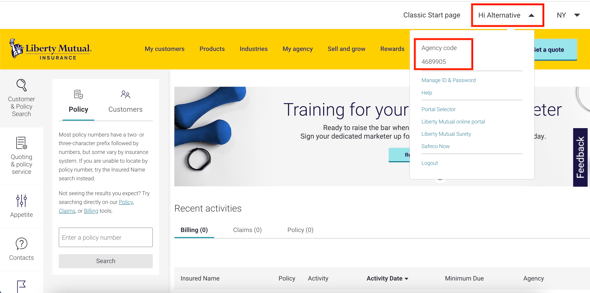
- Agency Code: The unique number Liberty Mutual assigns to your agency for identification. You can find it in the Liberty Mutual portal. For example, 4689905.
- First Name: First name of the agent who holds the NPN provided above.
- Last Name: Last name of the agent who holds the NPN provided above.
- Email: Email address of the agent who holds the NPN provided above.
How to find your National Producer Number (NPN):
i. Look it up using the 🔗 NIPR NPN Lookup Tool.
How to find your Agency Code:
i. Log in to the 🔗 Liberty Mutual Agent Portal.
ii. In the top right corner, click the button that starts with
"Hi..." (second from the right)
iii. Your Agency Code appears at the top of the dropdown.
How to Find and Enable Your Broker Code in CoverForce
Note: CoverForce has a new look and feel. Compare the screenshots below to what you see on your screen, then follow the matching set of steps.
🖥️ Original View (settings ⚙️ at the top of your screen)
- Hover over the settings gear on the top navigation bar.
- Click on "Broker Configuration".
- Scroll through the carrier list and select the carrier you’d like to set up.
- Click "Add Broker ID" on the right side of the screen.
- Enter the information required by the carrier for digital quoting (see Information You Will Need ⬆️ section above).
- Once all required information is entered, click "Save Changes" in the bottom right corner.
✨ New View (settings ⚙️ on the left side of your screen)
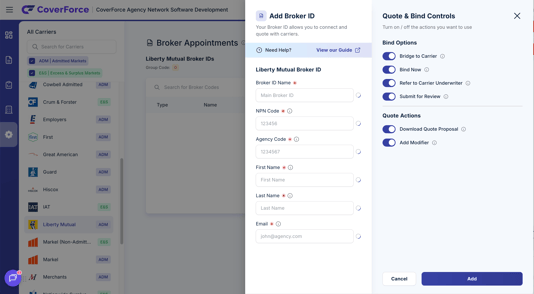
- Hover over the settings gear on the left navigation bar.
- Click “Broker Appointments”.
- Search for or scroll through the carrier you’d like to set up.
- Click “Add Broker ID” on the right side of the screen.
- Enter the information required by the carrier for digital quoting (see Information You Will Need ⬆️ section above).
- Once all required information is entered, click "Add" in the bottom right corner.
🎉 You're Ready to Quote with Liberty Mutual!
You've entered all the information required, your appointment is now enabled for digital quoting in CoverForce. No broker code request form and no waiting on approval!
Start a new quote to check Liberty Mutual's appetite, and you can begin quoting and binding today.